
FAQ & How to
Short guides to get the most out of It's Ahead, and quick answers about privacy, coverage and how the extension behaves.
15 questions match
How to
Seven short guides. Each one explains what a part of the extension is for, how to use it, and why it works the way it does.
First time using It's AheadWhat you see after installing, and what each part is for.2 min read
Open the side panel
- Click the It's Ahead icon in the Chrome toolbar.
- It opens beside the page, not over it — keep a posting open while you work.
- Pin it from Chrome's puzzle-piece menu. You will open it many times a day.
Click the icon and the panel opens beside the page, not over it — so the posting you were reading stays where it is. Three tabs, three questions
- Dashboard — what should I do right now?
- Jobs Board — where is everything?
- Settings — themes, reminders, backups, permissions.
Each tab answers one question. Open the Dashboard first: it is the one that tells you what to do next. 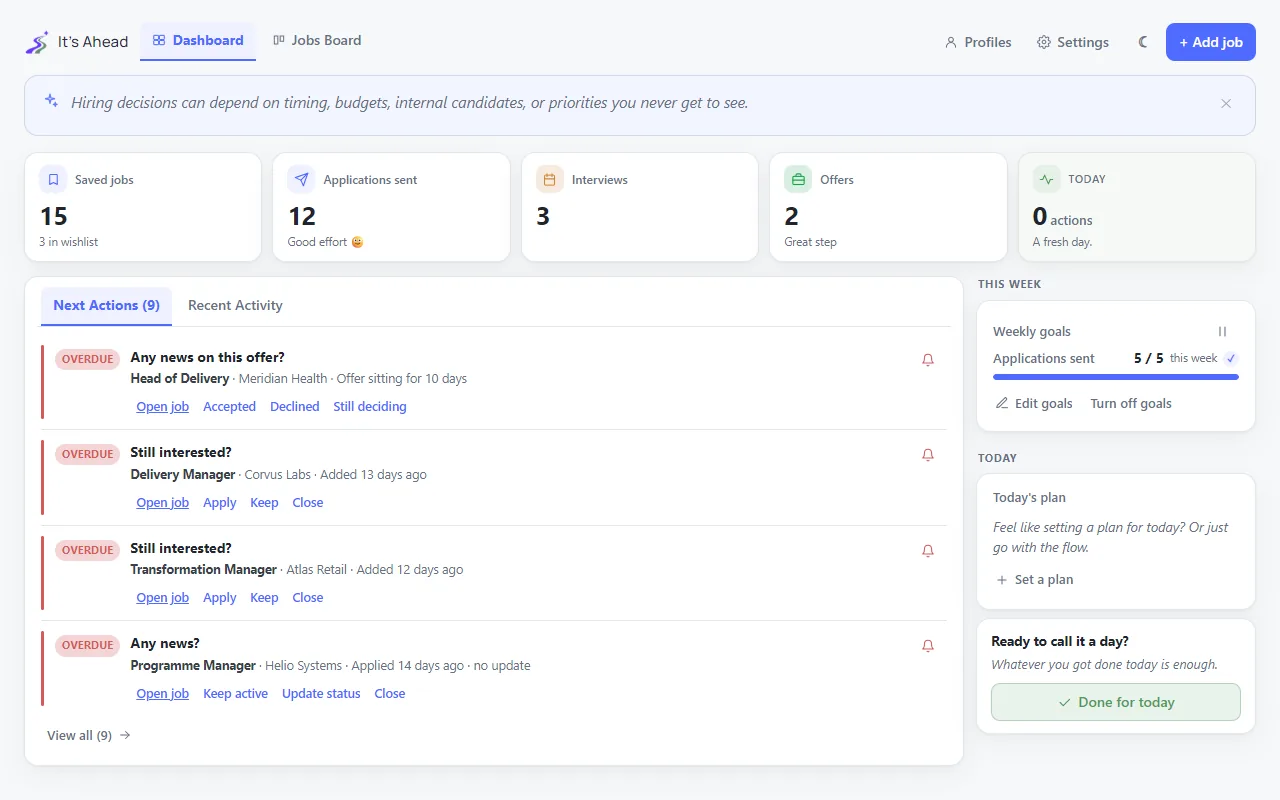
A profile is optional
- It holds what you retype on every form: name, contact, work history, links.
- About five minutes to fill. It is what makes autofill work.
- Skip it and everything else still works — you just fill forms by hand.
Role-specific profiles are made from the Master Profile, so employers and dates are filled in already. Tip. Build one Master Profile first. Role-specific variants are then created from it in seconds.
Your job search stays in your browser
- No account, no server, no sync.
- Changing computer? Export a backup in Settings, import it on the other side.
What the extension doesThree things it is for, one thing it deliberately will not do.2 min read
Save a posting
- Open the extension on a job page and press Save.
- It reads the title, company, location and description for you.
- Check what it found, then it lands in your Wishlist.
It reads the page locally, shows you what it found, and saves only what you confirm. Tip. You can also switch on a yellow in-page Save Job button, for the sites you choose, in Settings.
Prefill applications
- Fill copies your profile into the fields it recognises.
- It reports what it could not reach.
- Drag and drop the rest instead of copying from another tab.
Green means filled from your profile. Amber is the one it could not answer for you — nothing is submitted either way. 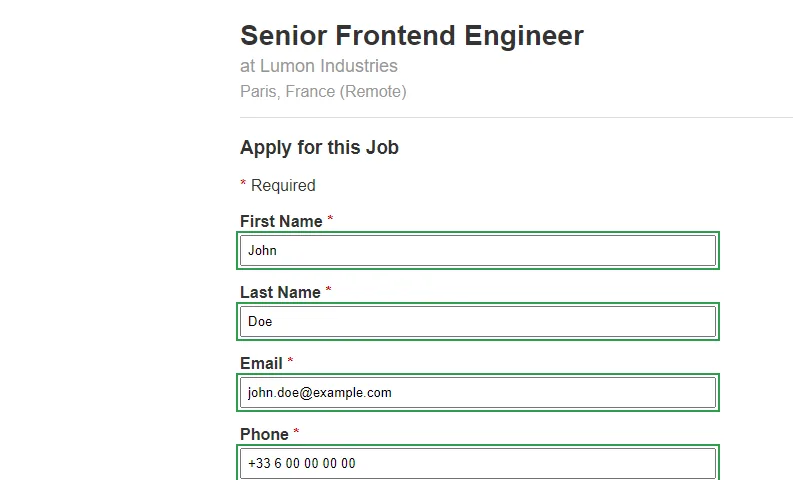
Tip. Autofill never submits. It stops after filling so you read before you send.
Track what happens next
- Status, notes, interview rounds, salary, contact and reminders live on the job.
- The dashboard surfaces the ones that may need something from you.
What it will not do
- It does not apply for you.
- It does not write your cover letters.
- It does not score you against anyone.
Getting the most out of itOne opportunity from the moment you find it to the moment it closes.4 min read
Why this matters
- Most people use a tracker as a record of what they did.
- That is the least useful half. The value is being told what to do next — and that only works if each stage is fed as you go.
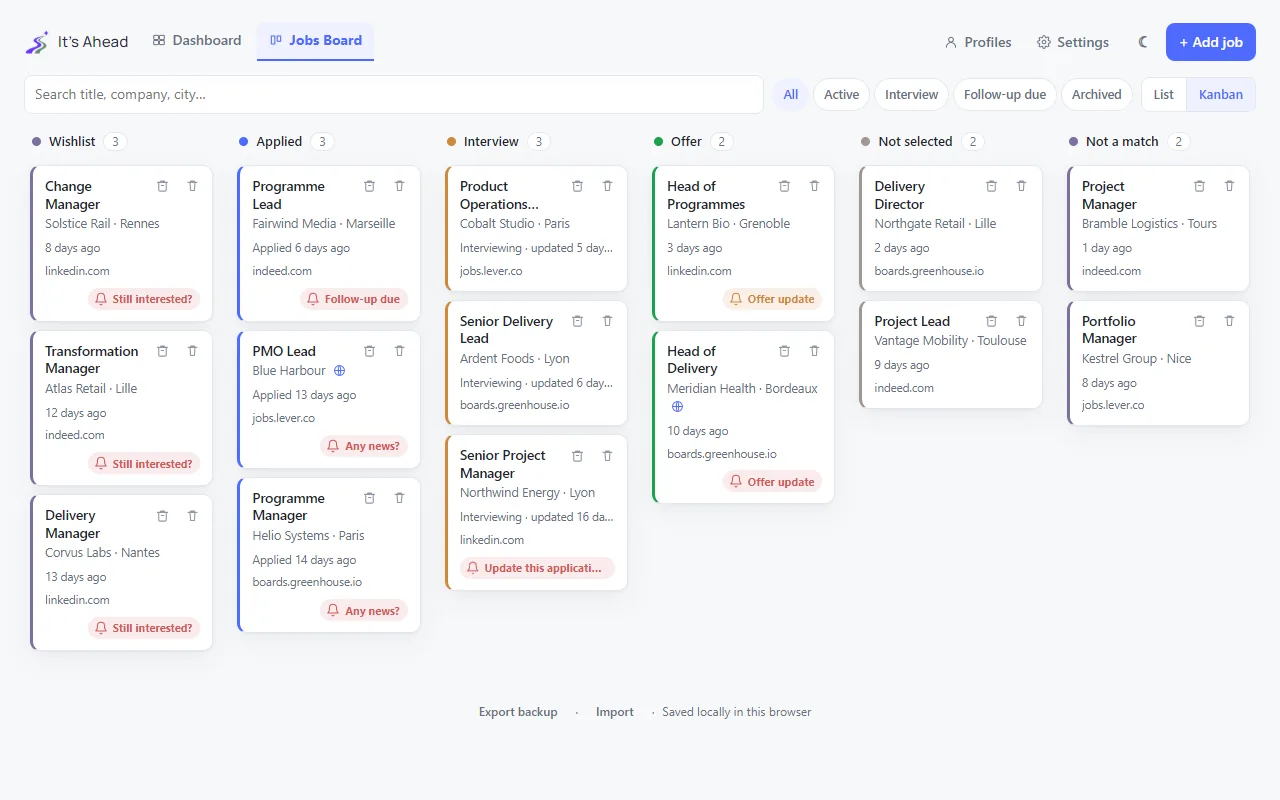
The same card, moving through the search. Every stage you feed is a stage the tool can remind you about. 1 · You find something
- Save it. Do not decide yet whether you will apply.
- Wishlist is a parking space, not a commitment.
- Saving is cheap and reversible; a browser history is not.
2 · You sit down to apply
- Filter to Wishlist and pick from what you already judged interesting.
- You are no longer searching and deciding at once — that is what makes application sessions draining.
- Fill, review, submit, then move the card to Applied.
3 · The wait
- This is where a tracker earns its keep.
- Next actions watches for: saved but never applied, applied with no news, an interview worth a note, an offer waiting on a decision.
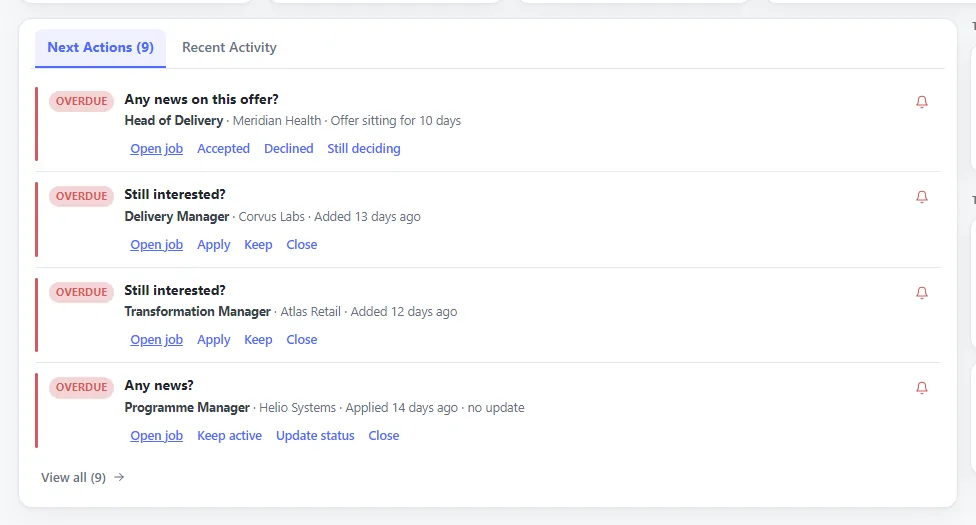
Tip. Know something specific is coming? Set a reminder with a note on the job. It appears in purple at the top, on the day.
4 · Interviews
- Add each round as it is scheduled.
- Write notes on the job itself — the useful moment is three weeks later, not now.
5 · It closes
- Offer, Not selected, or Not a match if you decided against it.
- Closing a card is how the board stops showing work that no longer exists.
Which view, when
- Kanban — where is everything?
- List — what about this one?
- Dashboard — what should I do right now? Open this one first.
Using the Jobs BoardViews, columns, card fields, filters and ordering.3 min read
Switch views
- The View switch sits on the right of the filter row, behind a divider.
- List — sortable table. Compare, sort by date, edit inline.
- Kanban — one column per status. See the shape of your pipeline.
- Your choice is remembered.
The switch sits behind the divider, to the right of the filters. Your choice is remembered between sessions. Choose your columns
- In List view, the gear opens the column picker.
- Job title and Status are always on.
- Seven ship visible, so the table fits without sideways scrolling.
- Drag the grip, or use the arrows, to reorder.
The gear opens the column picker. Drag a row by its grip to move that column left or right in the table. 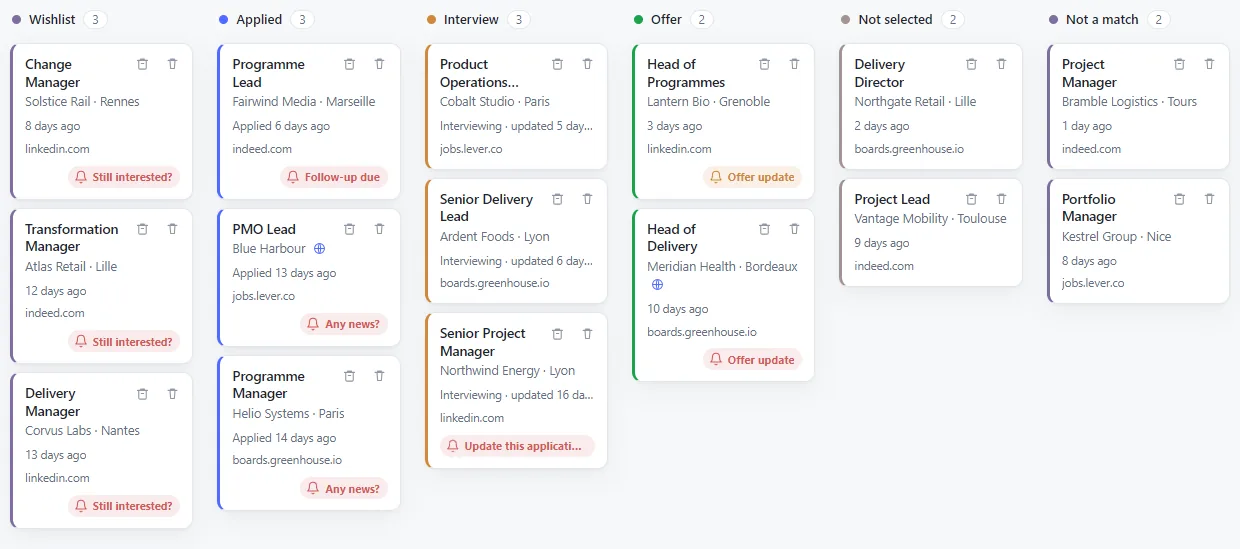
Tip. Put what you scan for on the left — usually title, company, status.
Choose what a card shows
- In Kanban the same gear opens a different list: the card fields.
- It stays in the same place across views, so the toolbar never jumps.
- Company, city and salary share one line — a card never becomes a wall of grey text.
In Kanban the same gear opens the card fields instead. Company, city and salary share one line. Sort and reorder
- Needs attention first — the default. Anything due leads its column.
- Last activity — plain recency.
- Manual order — yours.
- Drag a card up or down inside a column and the sort switches to Manual, so your order survives.
- Drag it sideways to change its status.
Drag a card up or down inside a column and the sort switches to Manual, so the order you just made survives. Filters
- All, Active, Interview, Follow-up due, Archived.
- Follow-up due is the one worth a habit.
Follow-up due leaves only the applications the tracker thinks are waiting on you. Working with a jobWhat each status means, and the reminder that fires when you asked.3 min read
The six statuses
- Wishlist — saved, not applied. No commitment.
- Applied — sent. The follow-up clock starts here.
- Interview — at least one round scheduled or done.
- Offer — yours to weigh.
- Not selected — they said no.
- Not a match — you said no. Closing on your own terms is not the same as being turned down.
Four are live, two close the job. Which of the two you use is the difference between being turned down and deciding. Moving a card
- Drag between kanban columns, or change the status field.
- Moving to Applied stamps the application date, which all follow-up timing is measured from.
Moving to Applied stamps the application date, and every follow-up is timed from it. Tip. Recording an old application? Set the date by hand, or the tool will think it is fresh and stay quiet for a week.
Custom reminders
- Every job has a reminder date and a short note saying what it is about.
- On the day it appears at the top of the dashboard, in its own purple.
- It does not replace or shift the automatic suggestion for that job.
- It fires even with smart reminders switched off — you asked for this one.
A date and a note. On the day it appears at the top of the dashboard, in its own purple. Tip. Write the note as the thing you will do: "ask Marie about the start date" beats "follow up".
Archive or delete
- Archive — off the board, still there if you look back.
- Delete — permanent. Meant for mistakes and duplicates.
Archive takes it off the board and keeps it. Delete is permanent, and meant for mistakes and duplicates. Notes and interviewsKeeping the details that matter three weeks later.2 min read
Notes live on the job
- Not in a separate document — that is why nobody finds them again.
- The value is not the moment you write them. It is the month-later call where you cannot remember who you spoke to.
Written on the job itself, so they are still there in a month when you cannot remember who you spoke to. What is worth writing
- Who you spoke to, and their role.
- Anything specific about timing, team or salary.
- What you promised to send.
- Your own read on it, while it is fresh.
Interview rounds
- Add a round as soon as it is scheduled: name, date, its own notes.
- The job then carries its whole history, not just its current state.
- The dashboard uses the dates to suggest a note once a round has passed.
Add a round as soon as it is scheduled — even an informal call. Those are the details that evaporate first. Tip. Add the round even for an informal call. Those are the details that evaporate first.
Reading the dashboardNext actions, weekly goals, done for today — and why they behave that way.3 min read
Next actions comes first
- The tool's answer to "what should I do right now?".
- Each item is a suggestion. Dismiss it, snooze it, or act on it.
Every item can be acted on, snoozed, or dismissed. One you keep dismissing is telling you something. Tip. A suggestion you keep ignoring is information: either the job is over and the card should be closed, or it genuinely needs doing.
Weekly goals are optional
- Set a target — applications sent, follow-ups made — or leave it off.
- Pause or switch them off at any time.
- A search is not a steady week-on-week effort. A target that keeps counting through a bad week stops being a tool and becomes a reproach.
- Nothing is ranked, nothing is scored, no streak breaks.
Pause them, change them, or switch them off. A target that keeps counting through a bad week is not helping. Done for today
- A job search has no closing time. There is always one more posting.
- This is a line you draw yourself. It closes the session and changes what the dashboard shows.
- Deciding when to stop is worth more than one more application filled in badly at midnight.
A line you draw yourself. The list goes quiet, and the day is closed. Tip. Use it even on a thin day. The point is the boundary, not the quantity behind it.
The tone is a design decision
- Reminders are phrased as questions. Nothing turns red because you were slow.
- Job hunting supplies enough rejection; a tracker that adds its own is not helping.
- This is a stance about software, not a claim about anyone's wellbeing — and every feature can be turned off.
Questions
Where is my data stored?
In your browser, and nowhere else. Saved jobs, notes and your profile live in Chrome's local storage on this device. There is no account and no server that holds a copy. The extension sends only two things, both described in the privacy policy: a feedback message when you choose to send one, and anonymous usage statistics, which you can turn off in Settings.
Do I need an account?
No. There is nothing to sign up for and nothing to log into. Install it and start saving jobs.
Is it free?
Yes, free to use.
Which sites does autofill work on?
Common application platforms such as Workday, Greenhouse and Lever, plus company career pages built on them. Coverage varies with how a form is built, which is why there is a drag-and-drop fallback for the fields autofill cannot reach.
Does it submit applications for me?
Never. Autofill fills the form and stops. You review everything and press submit yourself.
Which browsers are supported?
Chrome, and Chromium browsers that install Chrome Web Store extensions, such as Edge, Brave and Arc.
What happens to my data if I uninstall?
It is removed with the extension. Export a backup first from Settings if you want to keep it or move it to another browser.
Can I use it in another language?
The extension is available in English, French, German and Spanish, and follows your Chrome language by default. So is this site: it opens in your browser's language, and the language menu at the top switches it.
Ready to make job searching a little easier?
It's Ahead is free. Add it to Chrome and start organizing your search in seconds.
No credit card. Simple setup.